
TradingView Webhooks
This guide walks you through connecting TradingView alerts to your Tradleware instance so that your Pine Script strategies automatically trigger live orders on your exchange.
How It Works
TradingView Alert
      │  (HTTPS POST with JSON payload)
      ▼
Tradleware Webhook Endpoint
      │  (validates api_key, trader_id, ticker)
      ▼
Exchange API (OKX / Crypto.com / IR / IBKR)
Every TradingView alert fires a POST request to your Tradleware webhook URL. Tradleware validates the payload, routes it to the correct bot, and executes the order.
Prerequisites
- A running Tradleware instance (Setup guide)
- A TradingView account (free or paid — webhooks require a Pro plan or higher)
Step 1 — Get Your Webhook Details from the Dashboard
You don’t need to dig through config files — the dashboard surfaces everything you need.
Webhook URL (shared across all bots)
The footer of the Tradleware dashboard shows your full webhook endpoint URL — the same base URL used by every bot:
http://YOUR_SERVER_IP:8080/YOUR_WEBHOOK_PATHThis is the URL you will paste into TradingView.
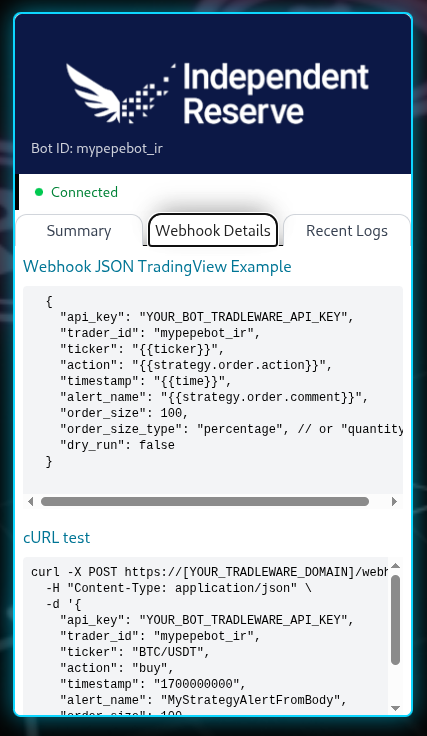
Per-bot API key and ready-to-use payload
Each bot has its own card on the dashboard. Expand the Webhook Details pane on the bot’s card to find:
- The bot’s
tradleware_api_key(the per-bot auth secret) - A pre-filled JSON payload you can copy directly into TradingView
- A live Test button to fire a
dry_runwebhook without leaving the UI
Important: TradingView requires your webhook URL to be publicly reachable. If Tradleware is on a home server you will need one of:
- A domain with DNS pointed to your IP + port forwarding on your router, or
- A reverse proxy (e.g. Nginx) in front of Tradleware, or
- A tunnel service (e.g. Cloudflare Tunnel) for a zero-port-forward setup
Step 2 — Create the Alert in TradingView
- Open a chart with your strategy applied
- Click the Alerts icon (clock) in the right toolbar
- Click Create Alert
- Set the Condition to your strategy’s entry/exit signals
- Under Notifications, enable Webhook URL
- Paste your Tradleware webhook URL
- Set the Message field to the JSON payload (see below)
Step 3 — The Webhook JSON Payload
Paste this into the TradingView alert Message field, customized for your bot:
{
  "api_key": "SOME_RANDOM_PER_BOT_KEY",
  "trader_id": "mybtcbot",
  "ticker": "BTC/USDT",
  "action": "{{strategy.order.action}}",
  "timestamp": {{timenow}},
  "alert_name": "{{alertname}}",
  "order_size": 10,
  "order_size_type": "percentage",
  "dry_run": false
}
Field reference
| Field | Description |
|---|---|
api_key | Your bot’s tradleware_api_key from YAML |
trader_id | The id of your bot in YAML (lowercase) |
ticker | Must match crypto_stablecoin_pair in your YAML exactly |
action | "buy" or "sell" — use {{strategy.order.action}} to auto-fill |
timestamp | Use {{timenow}} for TradingView’s current Unix timestamp |
order_size | 0–100 for percentage, or exact quantity |
order_size_type | "percentage" or "quantity" |
dry_run | true to simulate without executing; false for live trades |
Step 4 — Pine Script Integration
To fire buy/sell alerts from a Pine Script strategy, use strategy.entry and strategy.close:
//@version=5
strategy("My Tradleware Strategy", overlay=true)

longCondition = ta.crossover(ta.sma(close, 14), ta.sma(close, 28))
shortCondition = ta.crossunder(ta.sma(close, 14), ta.sma(close, 28))

if longCondition
    strategy.entry("Buy", strategy.long)

if shortCondition
    strategy.close("Buy")
When you create the alert for this strategy, TradingView will call your webhook on each strategy.entry and strategy.close with {{strategy.order.action}} resolving to "buy" or "sell" automatically.
Step 5 — Test Before Going Live
Always test with dry_run: true first:
- Set
"dry_run": truein your alert message payload - Trigger the alert manually in TradingView (right-click the alert → Trigger)
- Check your Tradleware dashboard — you should see the simulated order logged
- Once confirmed, update the payload to
"dry_run": false
Troubleshooting
| Issue | Fix |
|---|---|
| Alert fires but no log entry | Check your webhook URL — TradingView requires HTTPS for external URLs |
401 Unauthorized | Verify api_key matches the bot’s tradleware_api_key in YAML |
trader_id not found | Ensure the id in your YAML is lowercase and matches exactly |
ticker mismatch | ticker must match crypto_stablecoin_pair character-for-character |